Documentation / User interface / Main window
Main window

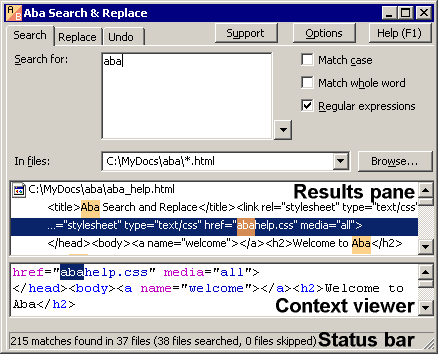
The main window is divided into 2 tabs: Search and Replace. On the Search tab, you can view the found phrase in context: the lower pane shows you the lines where the phrase was found. On Replace tab, you can preview the result of replacement. The left column lists the occurrences found in your files; the right column shows the same lines after replacement.
In the main window, you can enter the phrase to search for and to replace with. If you have selected Regular expressions mode, you can use metacharacters in the search pattern.
Search modes
- Match case. If this option is not selected, Aba will search for the text regardless of its case. For example, if you look for Windows, the program will find Windows, windows, or WINDOWS. If this option is selected, Aba will find only Windows, i.e. exact combination of capital and small letters that you specified.
- Match whole word. If this option is not selected, Aba will find the letters you entered in any word. For example, if you search for activ, the program will find active, activities, inactive, hyperactive, and even attractive. Common letter combinations such as and occur in unrelated words (thousand, standard), so you may want to select this option. In this case, Aba will find only the whole words (e.g., active will mean active and nothing else).
- Regular expressions. If this option is selected, you can use regular expressions in the search pattern. Note that some characters have special meaning in regular expression mode, so you will need to escape them. For example, if you searched for [i] (the letter I in square brackets), you will need to change it to \[a\] when switching to regular expression mode.
Browse for files
By pressing the Browse button, you can select the folder to search in.
File masks. When you select a folder, the program adds file mask *.* (all files) to the folder path, for example, C:\My Documents\*.*. You can enter a different mask in the field, e.g., *.txt to find all text files. If you want to specify several masks or files in one folder, use | to separate them. For example, use C:\Site\*.txt|*.htm|*.html to search in text and HTML files stored in the C:\Site folder.
If you select several files in Explorer, then run Aba from context menu, the Browse button show you not the folder selection dialog, but the file selection dialog. You can select several files in this dialog by holding Ctrl key and clicking the files to select.
The drop-down list shows you the last 20 directories that you searched in. You can select a folder from this list to search in it again.
You can also select the files in Explorer and run Aba from context menu.
Results pane
In the center of the window, there is a pane that displays the results of your search. Right-click a found file to perform various operations with it (copy or cut the file, view its properties). Press Enter or double-click a file to open it.
On the Replace tab, you can check and uncheck the small boxes to select the occurrences that you want to replace. If you want to select only a few occurrences, press Clear All button first, then click the boxes near the occurrences that you want to replace.
To check and uncheck boxes from keyboard, press Space button. You can also press Insert button to check a box and move to next box (it's similar to selecting files in Norton Commander).
Context view pane
The lower pane on the Search tab is called “context view pane”. It shows you the lines of the file where the text was found.
You can list the file with arrow keys, Page Down, Page Up, Home, and End keys.
To select some text, use left mouse button. The context menu allows you to copy the selected text to clipboard and to select all text in the file. (You can also use Ctrl+C and Ctrl+A keys for this purpose.)
Status bar
The status bar displays the number of files and matches found. Also shown are the total numbers of files searched and skipped. This information is often useful for troubleshooting. For example, if the number of files searched is zero, the folder you selected may be empty, or the file mask you entered may be too restrictive. The skipped files are binary files that have the extensions listed in the Options dialog.
The right part of the status bar shows the name of the selected file and its encoding. Sometimes there are a lot of matches in one file, and its name is scrolled out of the screen. In this case, you can look for the file name in status bar. Encoding information is useful for troubleshooting.
Questions and answers about the interface
Why the Replace button is disabled (gray)?
The Replace button is disabled in the following cases:
- the search is still in progress (in this case, the status bar reads “Searching...”);
- an error happened during the search (in this case, the results pane displays error description);
- the search was paused because there was too many matches found (the status bar reads “Too many matches found”);
- you have not selected any occurrences to replace (i.e., all checkboxes are clear). If you have pressed Clear All button, you need to select some occurrences to start the replacement.
What does the “Too many matches found” message mean?
If you enter some frequent search pattern, you will get a plenty of matches, most of which will be useless for you.
For example, you want to search for the word English in a large folder and type the first letter, E. You will immediately get thousands of matches, because the letter E is the most frequent letter in English text. These matches may take gigabytes of memory and greatly slow down your computer. They are also useless, because you usually don't want to search for one letter in your files.
That is why Aba introduces a limit on the number of matches. By default, the limit is 1024 matches. If there are more matches in your files, the search will be paused until you click Search for more button. This simple measure limits the amount of RAM used by Aba and improves the performance of the program.
If you have enough amount of memory installed, you can increase the limit in the Options dialog.